

Apps, Photoshop techniques, online tools, and pro tips — everything in one place.
There is something quietly magical about a watercolor painting. The soft bleeds of pigment, the way edges dissolve rather than cut, the gentle luminosity of wet-on-wet washes — it all communicates feeling in a way a crisp photograph simply cannot. So it is no wonder that millions of people every year search for ways to turn photo into watercolor masterpieces, whether for framed wall art, personalized gifts, or social media posts that genuinely stop the scroll.
The good news? You do not need to pick up a paintbrush or spend years learning traditional technique. Today’s tools — from free mobile apps to sophisticated Photoshop filters to dedicated AI platforms — make it possible for anyone to turn a photo into watercolor art in a matter of minutes. The tricky part is knowing which tool to use, and which settings deliver a result that looks genuinely hand-painted rather than cheap and pixelated.
This guide walks you through every major method: mobile apps, browser-based editors, desktop software like Photoshop and Illustrator, and professional printing services. By the end, you will know exactly how to get the soft, dreamy, gallery-ready result you have been imagining — no art school required.
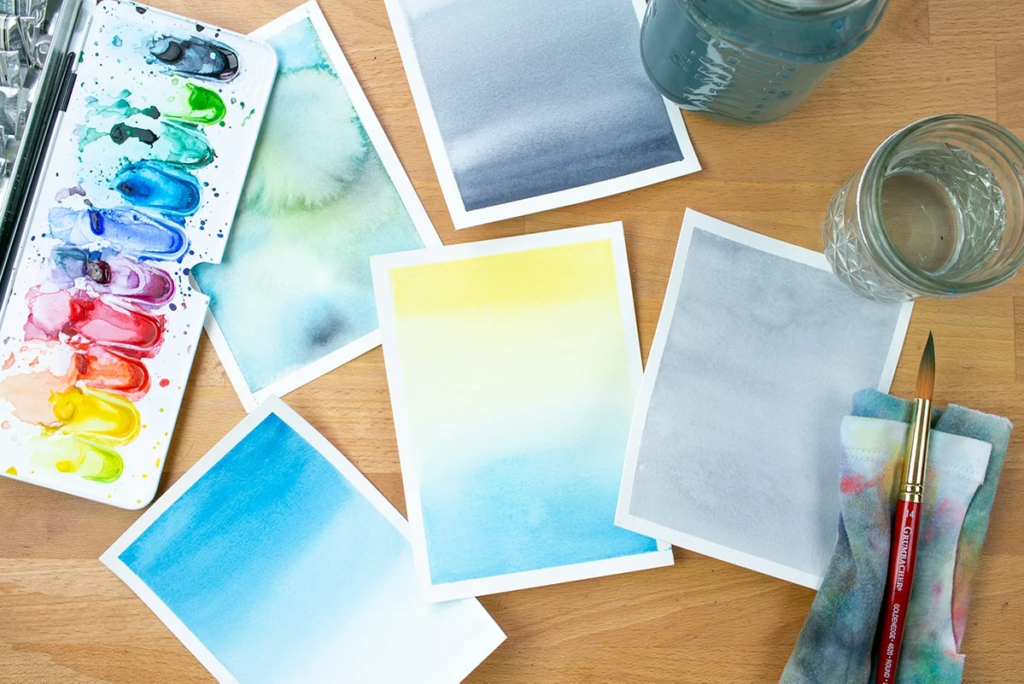
Watercolor painting is defined by soft pigment bleeds, wet-on-wet washes, and luminous color transitions — qualities that today’s digital tools can convincingly replicate from any photo.
Why So Many People Want to Turn a Photo Into a Watercolor
Photography captures reality with cold precision. Watercolor interprets it. That interpretive quality — the lost edges, the granulation, the soft halos of pigment — is why watercolor painting from photo conversions have surged in popularity. People are tired of images that look like everyone else’s. A watercolor photo carries emotion and warmth that a standard print simply cannot replicate.
Beyond aesthetics, there are very practical reasons to create watercolor from photo images. Wedding portraits converted to delicate watercolor illustrations make unforgettable gifts. Travel snapshots transformed with a watercolor filter become statement prints for living room walls. Pet photos turned into loose, expressive watercolor portraits — framed and gifted — bring people to tears (happy ones). Even brands use watercolor photo aesthetics to add artisanal softness to their marketing visuals.
The Rise of Digital Watercolor Art
Traditional watercolor is notoriously difficult. It is the medium that most often makes beginners cry, because unlike oil or acrylic, you cannot paint over mistakes. Watercolor rewards transparency, patience, and years of practice. The digital revolution has democratized access to that aesthetic: with the right tool, you can turn picture into watercolor art in under sixty seconds, and the results can be genuinely beautiful.
According to data from app stores, searches for tools that convert photo to watercolor have increased by over 200% in the last three years alone. That appetite shows no sign of slowing down, driven by social media platforms where painterly edits consistently outperform standard photography in engagement.
| Quick tip: The single biggest factor in how good a watercolor conversion looks is the source photo. High-contrast images with clear subjects and uncluttered backgrounds produce the most convincing results. Busy, low-light, or heavily compressed photos tend to look muddy after conversion. |
Best Apps to Turn Photo Into Watercolor on Your Phone
For most people, the easiest entry point is a smartphone app. The best ones use AI to analyze your image, detect edges, simulate pigment diffusion, and apply realistic paper texture — all without you adjusting a single slider. Here are the top options if you want to turn photos into watercolor right from your camera roll.
Waterlogue
Long considered the gold standard for photo to watercolor conversion on iOS, Waterlogue uses a proprietary algorithm that genuinely mimics the look of traditional watercolor. It offers multiple styles ranging from tight and detailed to loose and impressionistic. Results feel painterly rather than filtered, which is the crucial difference. If you want a watercolor portrait from photo that you could frame, Waterlogue is where to start.
Prisma
Prisma is a powerful photo to watercolor app free (with paid premium styles) that applies neural-network-driven style transfer. It goes beyond a simple watercolor filter — it actually re-renders your photo in the style of famous watercolor and impressionist paintings. The free tier is genuinely useful, making it one of the best ways to make photo look like watercolor without spending anything.
Adobe Fresco
Less of a one-tap filter and more of a full creative tool, Adobe Fresco lets you import a photo as a reference layer and then paint over it with incredibly realistic watercolor brushes that simulate real pigment bleeding on paper. If you want full control over how you watercolor my photo, this is unmatched. It is especially powerful for artists who want the result to look genuinely hand-painted rather than algorithmically processed.
Corel Painter Essentials
Available on desktop (Windows and Mac), Corel Painter Essentials includes a Smart Photo Cloning feature that automatically turn image into watercolor style from any reference photo using its library of realistic media brushes. The pigment simulation is sophisticated enough to fool most viewers.
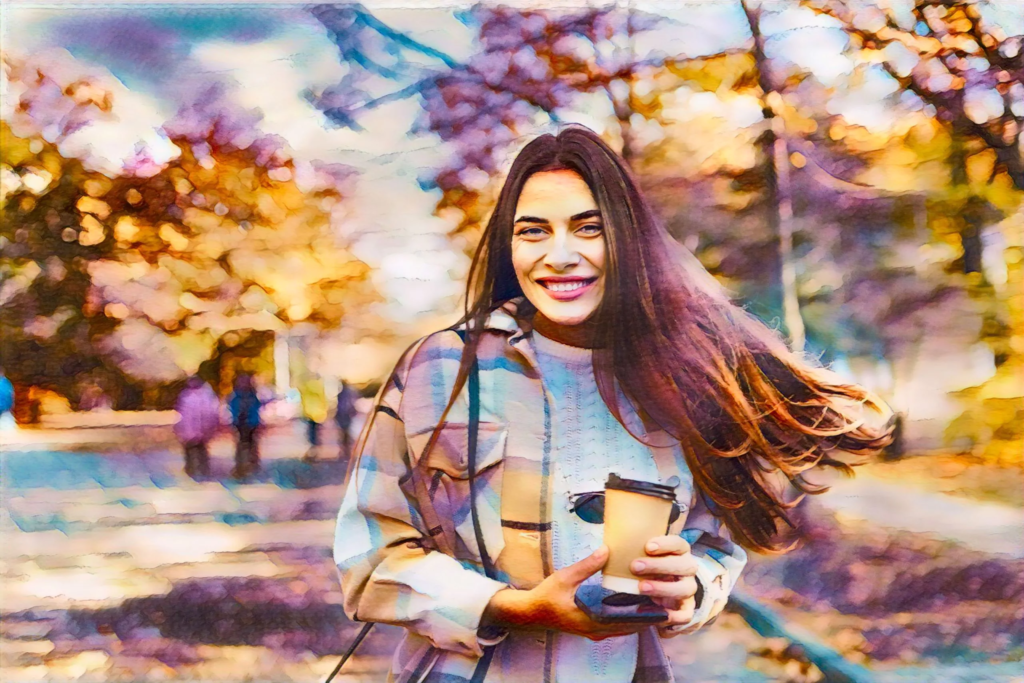
Modern AI-powered apps like Prisma and Waterlogue let you turn a photo into a watercolor painting directly from your phone — no brushes, no mess, no artistic experience required.
How to Turn a Photo Into Watercolor Online — Free Tools That Actually Work
Not everyone wants to install an app. If you are looking for a quick way to turn picture into watercolor online free, several browser-based tools deliver solid results without any download required. Here is a breakdown of the best options.
| Tool | Best For | Cost | Quality |
| BeFunky | Quick pictures to watercolor conversion with creative control | Freemium | ★★★★☆ |
| Fotor | Photo to watercolor with batch processing | Freemium | ★★★★☆ |
| Deep Dream Generator | Artistic style transfer — looser, more painterly | Freemium | ★★★☆☆ |
| Canva AI | Simple one-click effect for social media use | Freemium | ★★★☆☆ |
| Pixlr E | Manual watercolor painting effect with fine control | Free | ★★★☆☆ |
| Kapwing | Video and image watercolor filter for content creators | Freemium | ★★★☆☆ |
BeFunky: The Best Free Online Watercolor Tool
BeFunky’s Artsy category includes a dedicated watercolor effect that is genuinely impressive for a browser-based tool. Upload your image, apply the watercolor effect, and use the sliders to control brush size, transparency, and paint texture. You can make a picture watercolor in about two minutes flat, and the output is high enough resolution for printing at moderate sizes. It is the closest you will get to professional results completely free.
Fotor: Best for Batch Conversions
If you have a whole gallery of images — say, a wedding photo set or a travel collection — that you want to turn photos into watercolor consistently, Fotor’s batch processing is a lifesaver. The watercolor effect is adjustable, and the platform supports RAW files, which is unusual for a free tool.
How to Turn a Photo Into Watercolor in Photoshop — Step by Step
If you want the most control and the most convincing results when you convert image to watercolor Photoshop style, Adobe Photoshop is still the professional’s choice. The technique below uses filter layering rather than a single effect, which is why it looks more authentic than any automated app.
- Duplicate your layer — Always work non-destructively. Press Ctrl/Cmd + J to duplicate, then lock the original background.
- Apply Dry Brush filter — Go to Filter → Filter Gallery → Artistic → Dry Brush. Set Brush Size to 2, Brush Detail to 8, Texture to 1. This softens the photo while preserving edges.
- Add a Watercolor filter layer — Duplicate again, then Filter Gallery → Artistic → Watercolor. Set Brush Detail to 9, Shadow Intensity to 0, Texture to 1. Set this layer to Multiply blend mode at around 60% opacity.
- Create edge definition — Duplicate the original, desaturate it (Shift+Ctrl/Cmd+U), apply Filter → Stylize → Find Edges, then set blend mode to Multiply at 30–50% opacity.
- Add paper texture — Create a new layer, fill with neutral gray, add Filter → Render → Fibers (Variance 16, Strength 4), desaturate, set to Multiply at 20%. This simulates cold-press watercolor paper.
- Adjust colors — Add a Hue/Saturation adjustment layer, drop Saturation by 10–20 points. Watercolor pigments are luminous but not oversaturated.
- Final wash — Add a very light Color Balance adjustment pulling slightly toward cyan and yellow in the highlights. This mimics the slight color shift of real watercolor paints.
Done well, this method produces results that are genuinely difficult to distinguish from a scanned watercolor painting. The technique applies equally when you want to convert photo to watercolor painting for print or digital display.
| Pro note: When your goal is to turn photo into watercolor canvas art — meaning you want to print it on canvas rather than paper — increase the canvas resolution to at least 300 DPI at your target print size before applying filters. Applying effects at low resolution then enlarging produces blurry, pixelated prints. |
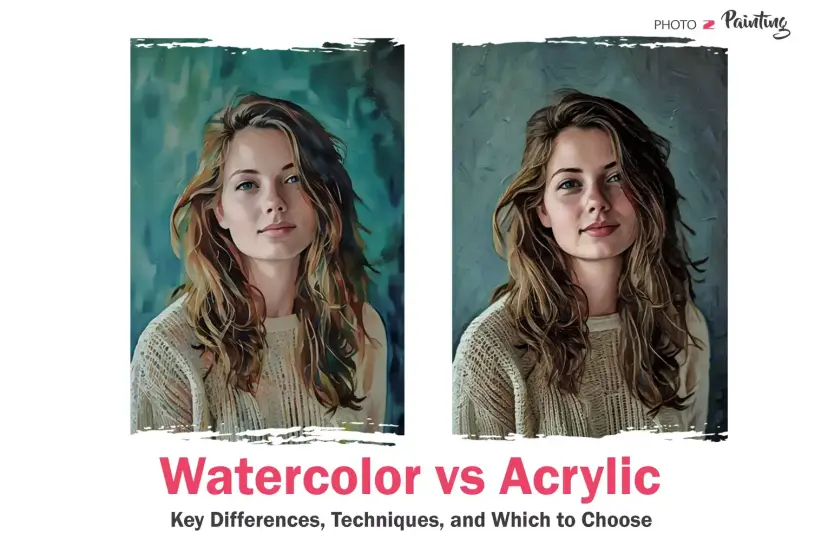
Before and after: turning a photo into a watercolor painting using layered Photoshop filters — the difference between a flat digital look and a genuinely painterly result lies in technique, not just tools.
Turn Image Into Watercolor Illustrator Technique
Adobe Illustrator is a vector tool, which means its approach to creating a watercolor effect is fundamentally different from Photoshop. The technique involves using Live Trace to create vector shapes from your photo, then manually applying translucent fills, gaussian blurs, and rough-edge textures to simulate watercolor washes. When you turn image into watercolor Illustrator style, the result is scalable to any size without quality loss — ideal for large-format watercolor prints from photos.
The workflow is more time-consuming than Photoshop but the output is infinitely scalable and looks stunning when printed large. It is particularly effective for portraits and simple compositions. For complex photos with lots of detail, Photoshop remains the more practical choice.
Choosing the Right Method — At a Glance
| Method | Best For | Time Required |
| 📱 Mobile App | Quick social media content — good quality | Under 1 minute |
| 🌐 Online Tool | No-install convenience — good to very good quality | 2–5 minutes |
| 🖥 Photoshop | High-quality prints — excellent quality | 15–30 minutes |
| 🎨 Illustrator | Large-format art — excellent+ quality | 1–3 hours |
| 🖨 Print Service | Physical framed artwork — combines any method above | Varies |
Watercolor Prints From Photos — How to Get Gallery-Quality Results
Converting your photo is only half the journey. If you want a photo to watercolor print that looks as beautiful on your wall as it does on your screen, the printing process matters enormously. Here is what you need to know.
Paper Choice Is Everything
Printing a watercolor picture from photo on glossy photo paper defeats the purpose entirely. You want the print to feel like it could have been painted. The gold standard is fine art matte paper — specifically cotton rag papers like Hahnemühle Photo Rag or Canson Infinity Rag Photographique. These papers have a texture that genuinely resembles cold-press watercolor paper, and their archival properties mean the print will last over a hundred years without fading.
For a more budget-friendly option, a high-quality luster paper printed on a professional Giclée printer still delivers far better results than a home inkjet on regular paper. Many online services — Printful, Redbubble, Fine Art America — allow you to upload your watercolor from photo conversion and order photos to watercolor prints on professional substrates without needing your own printer.
Canvas Printing: Turn Photo Into Watercolor Canvas
If paper prints feel too delicate, photo into watercolor canvas is a dramatic and durable alternative. Gallery-wrapped canvas has a slight texture that complements the painterly aesthetic. For a picture to watercolor canvas print, make sure your file is at least 150 DPI at the final print dimensions — 300 DPI is ideal.
Choosing a Printing Service
- Artifact Uprising — Premium matte paper prints with beautiful packaging. Ideal for watercolor portrait from photo gifts.
- Fine Art America — Wide substrate selection including canvas, metal, and framed prints. Great for watercolor print from photo orders.
- Printful — Best for creatives who want to sell their photos to watercolor prints as products without holding inventory.
- Mpix — Professional lab quality at consumer prices. Excellent for fine art paper printing.
- Minted — Curated art marketplace that also allows custom print orders — great for holiday gifts.
How to Make a Watercolor Portrait From Photo That Looks Hand-Painted
Portrait conversions are the most popular request — and the most demanding. A watercolor portrait needs to preserve the likeness of the subject while embracing the soft, interpretive quality of the medium. Get it wrong and it looks like a muddy mess; get it right and it looks like something an artist spent days on.
Choosing the Right Source Photo
When you watercolor a photo for a portrait, source image quality is the single biggest variable. The ideal portrait for conversion has:
- Good, directional natural light (preferably soft window light, not flash)
- A simple, uncluttered background — or a background you can separate easily
- Sharp focus on the eyes and face
- High resolution — at least 2,000 pixels on the long edge
- Good color — not heavily filtered or processed already
Golden hour portraits, where the subject is lit by warm afternoon sun, convert beautifully because the warm-cool contrast naturally suits watercolor’s color temperature shifts.
Apps Specifically Good for Watercolor Portraits
For watercolor portrait from photo conversions specifically, Waterlogue (iOS) and Prisma remain the top recommendations. For manual control, Adobe Fresco’s watercolor brushes on an iPad with Apple Pencil allow you to literally paint over a reference photo layer — producing genuinely hand-made results that no filter can replicate.
A growing number of Etsy sellers offer custom watercolor portrait from photo commissions — human artists who trace your photo digitally and paint it in watercolor, either traditionally or digitally.
Photo to Watercolor App Free — Android Options and International Tools
The watercolor conversion tool landscape varies depending on your device. Android users looking for a strong photo to watercolor app free on Google Play have a solid selection, though iOS apps generally lead in quality for this specific effect.
Best Android Apps
- Photo Lab — Includes a dedicated watercolor filter with good edge handling and multiple paper texture options.
- Painnt — Over 100 artistic filters including several convincing watercolor styles. A solid make photo into watercolor option.
- Pikazo — Neural style transfer that can render your photo in the style of real watercolor artworks.
- Artisto — One-tap artistic effects including watercolor, works well for video as well as stills.
Indonesian Users: Aplikasi Edit Foto Seperti Lukisan Cat Air
For users searching for an aplikasi edit foto seperti lukisan cat air (photo editing app like watercolor painting), the apps listed above are all available internationally via the Google Play Store and Apple App Store. Waterlogue, Prisma, and Photo Lab all support multiple languages and work without any specialized regional settings. BeFunky’s browser tool is also fully accessible without a VPN or regional restriction.
Expert Tips to Turn a Photo Into a Watercolor That Looks Professional
After covering all the tools, here are the practical insights that separate a mediocre conversion from something genuinely impressive. These tips apply whether you are using an app, an online tool, or Photoshop.
Edit Your Photo Before Converting
Spend two minutes adjusting your photo before you run any conversion. Increase contrast slightly, lift the shadows, and pull the highlights down. Push the clarity slider left (in Lightroom) to add a slightly soft-focus quality. These adjustments prime the image for a more convincing watercolor photo result by mimicking the way watercolor naturally softens mid-tones.
Convert, Then Blend Back
One of the most effective professional tricks is to change photo to watercolor, then blend the converted version back with the original at around 70–80% opacity in a layer stack. This preserves sharpness and detail where you need it — the eyes in a portrait, intricate details of a building — while the watercolor treatment handles the softer surrounding areas.
Use a Transparent Background
When creating watercolor prints from photos that you intend to layer on a colored or textured background, extract your subject against a transparent background before applying the watercolor effect. This lets the conversion work only on the subject, and you can place it on any paper texture or color wash afterward.
Preserve Color Luminosity
Real watercolor is luminous because you are seeing the white of the paper through translucent pigment layers. When you photo into watercolor convert digitally, maintain that quality by keeping your lights light. If your conversion produces muddy highlights, use a levels or curves adjustment to push the lightest tones back toward pure white.
Match the Style to the Subject
Not every watercolor style suits every subject. Loose, impressionistic washes work brilliantly for landscapes, florals, and travel photos. Tighter techniques are better for portraits and architectural photography. When you turn a picture into a watercolor, choose a style preset that aligns with the complexity and nature of your image.
How to Turn a Photo Into a Watercolor Print — for Selling or Gifting
The watercolor art market is thriving, and custom photo to watercolour conversions are among the most popular items on platforms like Etsy and Redbubble. If you are thinking about creating a small business or side income around this skill, here is what you need to know.
Copyright and Licensing Considerations
When you watercolor an image from your own photos, you own both the source and the derivative artwork. When using photos you did not take, you need explicit permission or must use photos licensed under Creative Commons. This is especially important if you are selling watercolor prints from photos commercially.
Pricing Your Work
Custom watercolor portrait from photo commissions on Etsy range from $15 for a basic digital file to over $200 for large, hand-painted traditional pieces. If you are selling digital files — meaning the customer downloads and prints themselves — your costs are nearly zero after the initial conversion work, making it an attractive low-overhead product.
Best Platforms for Selling
- Etsy — The primary marketplace for custom art commissions and digital downloads
- Redbubble — Upload your watercolor from photo art and sell on dozens of print-on-demand products
- Fine Art America — Professional print fulfillment with your own storefront
- Gumroad — Sell digital downloads directly to your audience
Frequently Asked Questions
How do you turn a photo into a watercolor painting for free?
The easiest free method is to use BeFunky’s online watercolor effect tool or download Prisma (free tier) on your smartphone. Both allow you to turn photo into watercolor free without any technical knowledge. For higher quality, Photoshop’s Watercolor filter (Filter Gallery → Artistic → Watercolor) produces excellent results if you already have a subscription.
How to make a photo look like a watercolor in Photoshop?
To make a photo look like a watercolor in Photoshop, use a layered approach: apply the Dry Brush filter on one duplicate layer, the Watercolor filter on another set to Multiply blend mode, and add a Find Edges layer to replicate pencil outlines. Add a subtle paper texture on top. This produces far more convincing results than a single filter.
What app turns photos into watercolor paintings?
Waterlogue (iOS), Prisma (iOS and Android), Photo Lab (Android), and Adobe Fresco are the top-rated apps. For a photo to watercolor app free, Prisma’s free tier and BeFunky’s browser tool are the best starting points without spending anything.
How to convert photo to watercolor painting online?
To convert photo to watercolor painting online without downloading software, visit BeFunky.com or Fotor.com, upload your image, and select the watercolor effect. For AI-powered style transfer, Deep Dream Generator and NightCafe also offer watercolor style presets.
Can I turn picture into watercolor online for free?
Yes — BeFunky, Fotor (limited free tier), and Pixlr E all let you turn picture into watercolor online free. BeFunky offers the most intuitive experience for beginners, with adjustable effect strength and a direct download in standard image formats.
How do I get watercolor prints from my photos?
First, convert photo to watercolor painting using any method in this guide at 300 DPI resolution. Then upload the file to a professional print service like Artifact Uprising, Fine Art America, or Mpix and order on matte fine art paper or canvas. Avoid glossy photo paper, which undermines the painterly aesthetic entirely.
How can I turn a photo into a watercolor painting without Photoshop?
You have several options: Waterlogue or Prisma on mobile, BeFunky in your browser, Corel Painter Essentials on desktop, or Adobe Fresco on iPad. Each allows you to turn photo into watercolor painting without any Photoshop subscription required. For the most hand-crafted result without software, commission a human artist on Etsy to watercolor my photo manually.
What resolution do I need for a watercolor print from a photo?
For a photo to watercolor print at standard wall art sizes (up to 16×20 inches), you need at least 300 DPI at the final print size. For canvas prints, 150 DPI is generally acceptable since the canvas texture adds visual grain. Always work at maximum resolution before applying any effects.
Is there a watercolor filter I can use on any photo instantly?
Yes. The fastest watercolor filter options are: Prisma (one tap on mobile), Canva’s watercolor effect (free, browser-based), and the Watercolor filter in Photoshop’s Filter Gallery. For social media, Instagram’s artistic filters include a soft painterly effect, though it is less convincing than dedicated watercolor tools.
Conclusion
| Whether you are reaching for your phone to quickly turn photo into watercolor art for an Instagram post, spending an afternoon in Photoshop crafting a layered conversion for a gallery-quality print, or commissioning a human artist on Etsy for a truly bespoke portrait — the options have never been better or more accessible. The key is matching your tool to your goal. Quick social content calls for Prisma or Waterlogue. High-quality prints destined for a living room wall deserve the Photoshop technique or a professional print service with fine art paper. Custom watercolor portrait from photo gifts are best trusted to a skilled artist who will watercolor a picture by hand or with digital painting tools that no automated filter can replicate. Whatever method you choose, remember that the source photo matters enormously — start with the best image you have, edit it well before conversion, and pay attention to print substrate. A beautiful photo into watercolor conversion printed on cheap paper is still a cheap print. Invest in the output, and the result will reward you every time you look at it on your wall. Now go make something beautiful. That photo has been waiting long enough. |